
LG webOS Digital Signage: How It Works and When to Use It
LG's webOS commercial displays put the player inside the panel. Here's what that means in practice: how to install and pair an app, what the different webOS Signage generations support, and where it wins over Tizen.
On this page
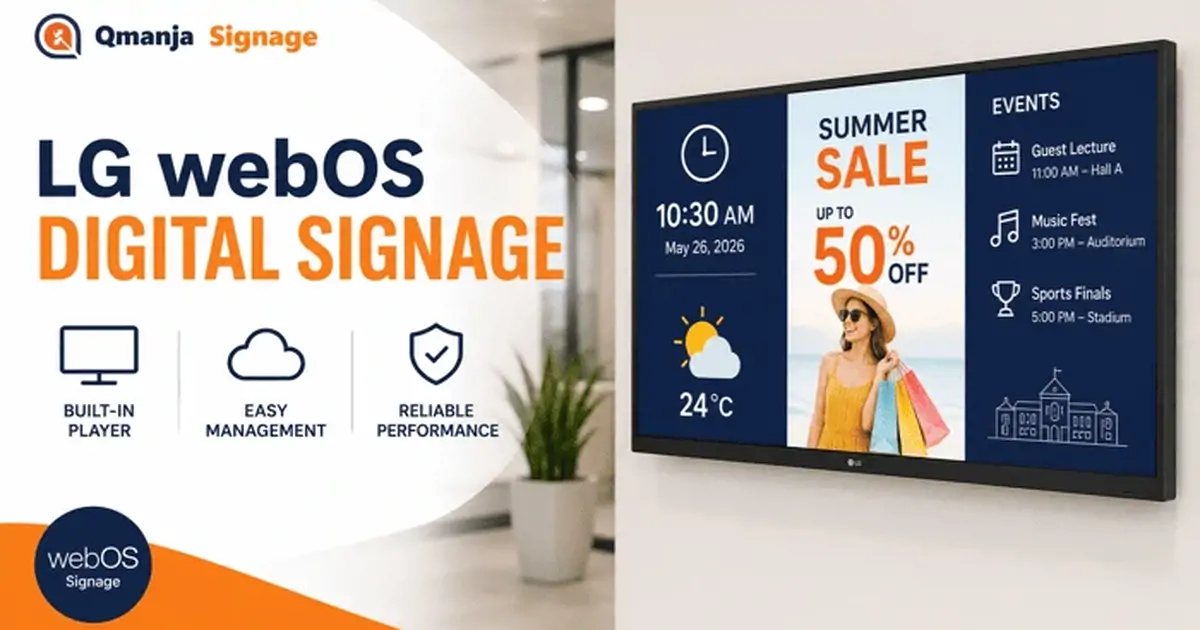
LG's commercial displays run webOS Signage, a version of the operating system on LG's televisions adapted for professional use. Like Samsung's Tizen platform, it puts the media player inside the panel — one power cable, one network cable, nothing hanging off the back.
The two platforms are close enough that most buying decisions come down to commercial terms rather than technology. This guide covers how webOS Signage works, how to install and pair a third-party CMS, where SuperSign fits, and what actually separates webOS from Tizen in practice.
What webOS Signage is
webOS Signage is LG's system-on-chip platform for its commercial display ranges. The panel contains a processor, storage, network connectivity and an application runtime, so signage software runs on the display itself rather than on an attached box.
The application model is web-based: signage apps are web applications, either loaded from a URL or installed as a packaged .ipk. That is convenient for CMS vendors, because the same player code that runs in a browser largely runs on the panel — which is also why webOS support tends to arrive quickly after browser support.
As with Samsung, the commercial platform is distinct from the consumer one. An LG television running consumer webOS is not the same product and does not offer the signage tooling, the duty-cycle rating or the portrait support.
webOS Signage generations and what changed
Each generation of LG commercial panel ships a newer webOS Signage build with a newer web runtime. The practical consequence is the same as with Tizen: a CMS that works flawlessly on a current panel may behave oddly on one that is several generations old, because the underlying browser engine is that much older.
What that looks like in the field is unsupported video codecs, missing CSS or JavaScript features, and a lower performance ceiling on complex layouts. Broadly:
- Older generations handle single-zone playlists and basic layouts comfortably, and struggle with heavy multi-zone content or newer codecs.
- Recent generations handle multi-zone layouts, HTML5 video and live web sources without difficulty.
Two rules, and they are the same two as for Tizen. Ask your CMS vendor which webOS Signage versions they support, in writing, against the specific model you are quoted. And check the model number rather than the year you are buying in — distributor stock can be years old. LG documents the platform version per model in its developer specifications.
Installing a signage app on webOS
Most cloud platforms use a hosted web application loaded by URL. The general process, with menu names varying by generation:
- Connect the display to the network — wired Ethernet for preference.
- Open the settings menu with the remote and find EZ Setting (or Settings → General on some builds).
- Open Server Settings or Application Settings.
- Select the option to load a local or remote application by URL and enter the player URL from your signage platform.
- Save and reboot. The panel loads the player on boot from then on.
Some platforms distribute a signed .ipk instead, installed over the network or from USB. That gives slightly deeper device integration; the URL route is simpler and is what most cloud vendors use. Ask which your platform supports for the generation you are buying, and get the answer before you order panels rather than after.
Pairing and first boot
When the player loads it displays a six-character pairing code. Enter that code in your dashboard and the panel claims itself to your account, exactly like any other screen.
Worth doing at pairing time rather than later: give the screen a name that describes where it physically is, and assign it to its outlet and screen groups. On a wall-mounted panel in a public space you should never need the remote again, and building group structure retrospectively across an estate is tedious.
Power scheduling and failover
The panel-level features are where commercial displays justify their price, and they operate independently of whatever your CMS is doing.
- On/off timer. The panel powers itself on and off at set times, network or no network. Match it to trading hours; it cuts energy use and extends panel life.
- Auto source recovery. After any interruption the display returns to the signage application rather than sitting on an input-select screen.
- Fail-over. LG panels can be configured to switch to a backup source — a USB playlist, or another input — if the primary application does not respond. Genuinely useful for unattended sites: a fallback loop is far better than a blank screen.
- Screen-saver and image-retention protection. Pixel shift and white-wash cycles, worth enabling on any layout with static zones, which includes most menu boards and every directory.
- Portrait mounting. Supported and rated, unlike most consumer panels where it can void the warranty.
SuperSign and where a third-party CMS fits
SuperSign is LG's own content management software. It is competent, it is tightly integrated with LG hardware, and for an all-LG estate it is a perfectly reasonable choice — particularly where the panel-level features matter more than content sophistication.
The case for a third-party CMS is about estates, not features. Almost no real deployment stays single-vendor: an acquisition brings Samsung panels, a small site gets an Android TV box because a commercial panel is not justified, reception ends up on a Windows machine. At that point a vendor-specific CMS means running two or three content systems in parallel, with the same content maintained in each, and they drift.
A platform-agnostic CMS keeps one content library, one schedule and one permission model across every device type. Qmanja Signage covers webOS, Tizen, Android TV, Fire TV, Windows and the browser player from a single account.
Worth being clear about what a third-party CMS does not replace: LG's device-management tooling still handles firmware, hardware health and panel diagnostics. The two layers are complementary — CMS for content, LG tooling for hardware.
webOS vs Tizen: an honest comparison
They are closer than either vendor's marketing suggests.
| LG webOS Signage | Samsung Tizen (SSSP) | |
|---|---|---|
| Player location | In the panel | In the panel |
| Third-party app model | URL or signed .ipk | URL Launcher or signed .wgt |
| Vendor CMS | SuperSign | MagicINFO |
| Device management | LG tooling | MDC / Samsung RM |
| Power scheduling | Yes | Yes |
| Built-in fail-over | Yes, well implemented | Yes |
| Third-party CMS support | Broad | Broad, slightly wider |
| Generational lock-in | Yes — SoC fixed at purchase | Yes — SoC fixed at purchase |
Choose on commercial terms rather than on the operating system name: panel price for the sizes and brightness you need, warranty length and whether on-site cover is available, local support and spares availability, and — the one that actually matters technically — which SoC generation is in the specific model you are being quoted.
Samsung has slightly wider third-party CMS support simply because SSSP has more market share, so a niche platform is marginally more likely to support Tizen than webOS. If you are using a mainstream CMS, this is not a differentiator.
Limitations to plan around
- The SoC cannot be upgraded. Panel capability is fixed at purchase. If it falls short in year four, the options are a new panel or an external player — which forfeits the reason for buying SoC.
- Complex layouts have a ceiling. Several simultaneous video zones will hit the envelope sooner than on a dedicated player.
- Feature lag. CMS vendors generally ship to web and Android first. Ask what the webOS release cadence actually is.
- Awkward debugging. No keyboard, no easy console. Faults are diagnosed through the CMS and LG's tooling rather than on the device.
- Higher entry cost. A commercial panel costs considerably more than a consumer display plus a $50 player. Justified for continuous operation and public installations; harder to justify for a single screen in a back office.
Running webOS alongside Android and Windows players
The pattern most multi-site operators converge on is sensible and worth stating: commercial SoC panels where the screen is public-facing and runs all day, cheap external players where it is not.
A retail group might run LG or Samsung panels in the flagship windows, Android TV boxes on back-of-house and smaller-store screens, and a Windows player for the one video wall with heavy multi-zone content. That is not untidy — it is spending the hardware budget where the duty cycle justifies it.
What makes it work is a single CMS across all of it. Screen groups by role rather than by device type mean a campaign publishes to "every window screen" regardless of what is driving each one, and staff never need to know or care which panel is which.
Specifying LG panels: what to check on the quote
Most webOS projects that disappoint were specified badly rather than installed badly. Six things to confirm in writing before you sign a purchase order.
1. The webOS Signage version, per model. Not "webOS". The version. This determines what your CMS can render and it is fixed for the life of the panel. Ask the reseller to state it against each line on the quote.
2. Brightness in nits, and where the panel is going. 350–400 nits is fine for an interior corridor and useless behind glass. Window-facing installations need 2,500 nits and upwards. This is the specification that cannot be corrected later at any price.
3. The rated duty cycle. 16/7 and 24/7 panels cost differently and are warranted differently. A screen running fourteen hours a day, seven days a week, needs the 24/7 rating even though the arithmetic says otherwise, because the rating covers thermal design as well as hours.
4. Portrait support. Commercial panels state it explicitly. If the quote does not, ask — mounting a landscape-only panel in portrait affects heat dissipation and will be visible in the warranty conversation later.
5. Warranty terms and whether on-site cover is available. Three years is typical. Return-to-base on a wall-mounted panel three metres up is a very different proposition from on-site, and the price difference is usually small relative to the labour of getting a panel down.
6. Local spares and lead time. The panel you install today is the panel you will want to match in eighteen months when you add a second screen to the same wall. Ask how long the model will be available.
Designing content for SoC panels
The player being inside the panel changes a few practical things about how you build content, and they are easy to get wrong if you have only ever authored for a desktop player.
Budget your zones. An SoC has a fixed performance envelope. A layout with one video zone and two static zones runs comfortably on almost any generation; four simultaneous video zones will not. If a layout must be heavy, test it on the actual panel generation before you build fifty screens around it.
Encode conservatively. H.264 in an MP4 container plays on every generation. H.265 saves bandwidth and storage but support depends on the SoC, and the failure mode — a black zone where video should be — is not obvious. If you are unsure, encode to H.264 and revisit later.
Prefer static text to rendered images. Text drawn by the panel stays crisp at any resolution and costs almost nothing to render. Text baked into a JPEG has to be re-exported whenever anything changes and softens when scaled.
Design for image retention. A layout with a fixed header, a fixed sidebar and a rotating centre zone will, over thousands of hours, leave a ghost of the fixed elements. Commercial panels resist this far better than consumer ones, and the mitigations still matter: enable pixel shift, and introduce slow movement into otherwise static regions — a gently drifting background is enough.
Keep a fallback. LG's fail-over will switch to a backup source if the application stops responding. Put something useful there — a simple looping playlist on USB with your opening hours and branding. A fallback loop is a far better failure state than a blue input-select screen.
Troubleshooting
The app does not load after reboot. Confirm the application setting survived — a factory reset or some firmware updates clear it. Confirm the panel has a network address before the app is expected to load.
The player loads but renders incorrectly. Nearly always a generational runtime issue. Check the panel's webOS Signage version against your CMS vendor's supported list.
Video will not play. Codec support varies by generation. Re-encode to H.264 to confirm before assuming a platform fault; H.265 support depends on the SoC.
The panel powers off unexpectedly. The on-board on/off timer or an eco setting. The panel's own schedule operates independently of the CMS and takes precedence.
The fail-over source keeps appearing. The panel has decided the primary application is unresponsive. Usually a network problem rather than an application one — check connectivity and DNS resolution from the panel before blaming the CMS.
Image retention on a static layout. Enable pixel shift and the panel's protection cycles, and introduce movement into otherwise static zones.
The verdict
webOS Signage is a solid, well-supported SoC platform, and for practical purposes it is interchangeable with Tizen. If you are buying commercial panels anyway, the built-in player is worth having: one device per screen instead of two, no cabling behind the panel, and panel-level power scheduling and fail-over that consumer hardware simply does not offer.
Choose the panel on price, warranty and local support. Choose the CMS on whether it will still cover your estate when a quarter of it is not LG — because panels get replaced every five to seven years, and your content library should outlive several generations of them.
Running a mixed estate? Qmanja Signage manages webOS, Tizen, Android TV, Fire TV, Windows and browser screens from one dashboard, with one content library and one permission model. Your first screen is free.


