
Samsung Tizen Digital Signage: A Practical Guide to System-on-Chip Displays
Samsung's Smart Signage Platform removes the external media player entirely. That's elegant when it fits and frustrating when it doesn't — here's how Tizen signage actually works and how to decide.
On this page
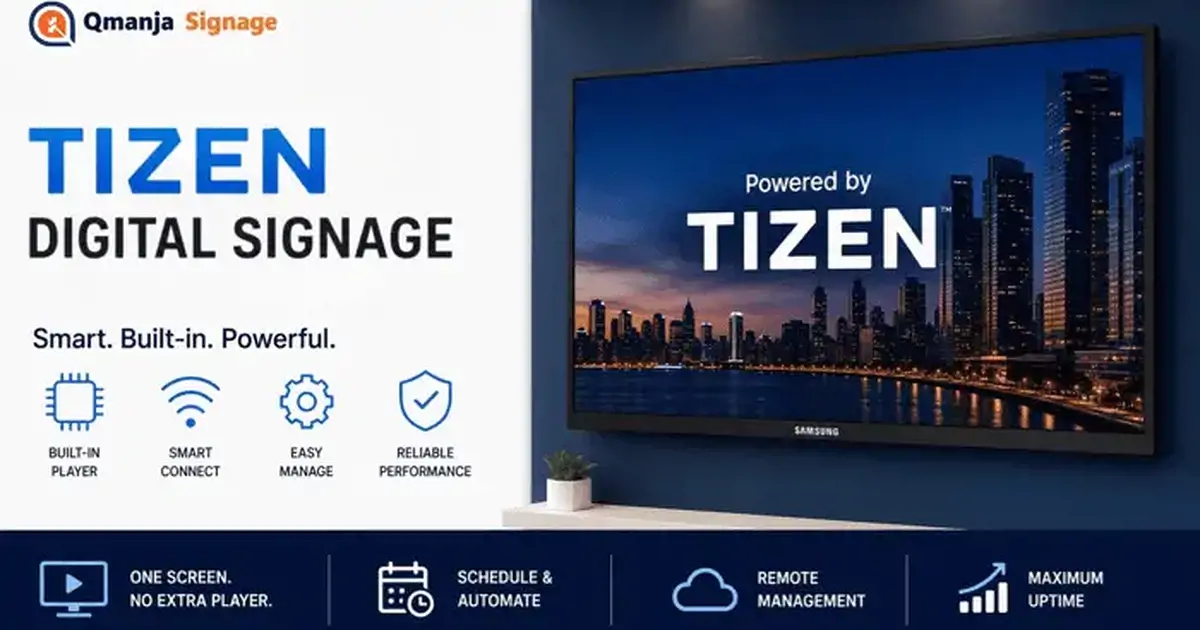
Every digital signage screen normally needs two devices: a display and something to drive it. Samsung's Smart Signage Platform removes the second one. The signage app runs on a processor inside the panel, so a screen is one power cable and one network connection with nothing hanging off the back.
That is elegant when it fits your situation and frustrating when it does not. This guide explains how Tizen signage actually works, how to get a third-party platform onto a panel, what the SSSP generations mean in practice, and how to decide between system-on-chip and an external player.
What Tizen signage actually is
Tizen is the Linux-based operating system Samsung uses across its TVs and commercial displays. On Samsung's professional signage panels — the QM, QB, QH and similar ranges — it ships as the Samsung Smart Signage Platform, usually shortened to SSSP.
SSSP gives the display three things a bare panel does not have: an application runtime, network connectivity, and a device-management interface. The result is that a signage CMS can run on the screen, fetching and rendering its own content, rather than receiving a video signal from a box.
An important distinction: this is not the same as the Tizen on a consumer Samsung TV. Consumer sets run a different build with a different app model and no SSSP tooling. If a supplier offers you consumer TVs and describes them as supporting Tizen signage, they are describing something else.
The system-on-chip trade-off
What you gain:
- One less device per screen. Across two hundred screens that is two hundred fewer things to fail, power, mount and inventory.
- No cabling behind the panel. Which matters most in flush installations and in public spaces where anything reachable eventually gets unplugged.
- Genuine commercial ratings. Continuous-operation duty cycles, portrait mounting, higher brightness, three-year warranties.
- Estate management built in. Power scheduling, temperature and fault reporting, remote diagnostics — features consumer hardware simply does not expose.
What you give up:
- Fixed capability. The SoC generation is decided when you buy the panel. You cannot upgrade the player without replacing the display.
- Less headroom. An SoC is designed for the panel's cost envelope. On heavy multi-zone layouts or several simultaneous video zones, a dedicated player has more room.
- Feature lag. A CMS vendor ships to web and Android first. The Tizen build usually follows.
- Higher entry price. A commercial panel plus SoC costs more than a consumer panel plus a $50 Android TV box.
SSSP versions and why they matter
SSSP is versioned by panel generation, and the version determines which web platform features the built-in runtime supports. This is the single most common source of surprise on Tizen projects: a CMS that runs perfectly on a 2024 panel behaves oddly on a 2018 one, because the browser engine underneath is six years older.
Practically, that shows up as unsupported video codecs, missing CSS or JavaScript features, and different performance ceilings. It is exactly the same class of problem as supporting an old browser.
Two rules follow:
- Ask your CMS vendor which SSSP versions they support, and get it in writing against the specific model you are being quoted. "Supports Tizen" is not an answer.
- Check the model number, not the year you are buying in. Distributors carry stock for a long time; a panel bought today can be two or three generations old.
Samsung publishes the SoC generation per model in its display specifications, which is worth cross-referencing before you commit to a large order.
Installing an app with URL Launcher
Most cloud signage platforms get onto a Tizen panel through URL Launcher, the mechanism that tells the display to load a web application on boot instead of a normal input source.
The general process — exact menu names vary by generation:
- Power on the display and open the on-screen menu with the remote.
- Go to Menu → System → Play via and set it to URL Launcher.
- Go to Menu → System → URL Launcher Settings (some generations put this under a Server Network Settings item).
- Enter the player URL supplied by your signage platform.
- Confirm and reboot the display. It loads the web player on boot from then on.
The panel needs a network connection before this works. Wired Ethernet is strongly preferable — commercial panels are usually installed where a data drop is feasible, and it removes the most common source of intermittent faults.
Some platforms also distribute a signed .wgt package, installed over the network or from USB. That route gives the app slightly deeper device access; URL Launcher is simpler and is what most cloud CMS vendors use. Either is fine — ask which your platform supports for the SSSP version you are buying.
Pairing the display to your account
Once the player loads, it behaves like any other screen: it shows a six-character pairing code, you enter that code in your dashboard, and the display claims itself to your account.
Name it for the physical location rather than the device, assign it to its outlet and screen groups at pairing time, and put the remote somewhere safe. On a wall-mounted commercial panel in a public area you will not want to go looking for it later, and you should not need to.
On/off scheduling and power management
This is where commercial panels genuinely earn their price difference, and it is worth configuring properly.
Tizen displays have an on-board power schedule independent of the CMS: the panel turns itself on and off at set times, whether or not it can reach the network. Combined with content scheduling in the CMS, you get two useful layers — the panel handles the hardware duty cycle, the CMS handles what plays while it is on.
Worth setting up on every install:
- On/off timer matched to trading hours, with different weekend times where relevant. Reduces energy use and extends panel life.
- Auto source recovery, so the display returns to URL Launcher after any interruption.
- Screen burn protection — pixel shift and similar. Relevant for any layout with static regions, which is most menu boards and every wayfinding screen.
- Temperature alerts, if your management tooling supports them. An enclosed panel in a sunlit window is a real failure mode and the panel knows about it before you do.
Remote management with MDC and RM
Samsung provides two device-management layers that operate below the CMS.
MDC (Multiple Display Control) is the protocol for controlling panel hardware over the network or serial: power, input, brightness, volume, and reading back status and temperature.
Samsung RM (Remote Management) is the cloud service that wraps this for estate-scale monitoring, firmware distribution and fault alerting.
The relationship with your CMS is worth being clear about, because it is a common source of confusion: the CMS manages content, MDC/RM manage hardware. They are complementary, not alternatives. A third-party CMS handles what plays and when; Samsung's tooling handles panel firmware and hardware health. On a mixed estate you will typically run both.
Where Tizen signage falls short
Honestly, so you can plan around it:
- You cannot upgrade the player. If a panel's SoC generation cannot do what you need in year three, the fix is a new panel — or an external player plugged into it, which forfeits the reason you bought SoC.
- Heavy layouts are harder. An SoC has a fixed performance envelope. Many independent video zones will hit it sooner than a dedicated player would.
- Feature parity lags. Expect Tizen builds to trail web and Android releases. Ask your vendor what their Tizen release cadence actually is.
- Debugging is more awkward. There is no keyboard and no easy console. Problems are diagnosed through the CMS and through Samsung's tooling rather than on the device.
- Vendor coupling. Standardising on SSSP means your estate is a Samsung estate. That is a commercial negotiating position as much as a technical one.
SoC vs external player: how to choose
| Consideration | Tizen SoC | External player |
|---|---|---|
| Cost per screen | Higher — commercial panel | Lower — any panel plus $35–$150 |
| Devices to maintain | One | Two |
| Upgrade path | Replace the panel | Replace a $50 box |
| Multi-zone headroom | Fixed by SoC generation | Choose the hardware to fit |
| Install complexity | Lowest — one cable | Player, power and cabling |
| Estate management | Excellent — MDC/RM built in | Depends on the CMS |
| Best for | Commercial estates, public spaces, new panel purchases | Existing screens, tight budgets, demanding layouts |
A simple decision rule that holds up in practice: if you are buying new commercial panels anyway, use the SoC. If you already own screens, use an external player. The exception in both directions is layout complexity — heavy multi-zone content pushes you towards an external player regardless.
Managing a mixed estate
Real estates are mixed. Commercial Samsung panels in the flagship stores, Android TV boxes in the smaller sites, a Windows machine driving reception, an LG panel that arrived with an acquisition.
The thing to avoid is a separate CMS per platform, because that multiplies every content operation by the number of platforms and guarantees the estate drifts out of sync. A platform-agnostic cloud CMS keeps one content library, one schedule and one permission model across all of them; Qmanja Signage covers Tizen, webOS, Android TV, Fire TV, Windows and the browser player from a single account.
Samsung's own SuperSign and Magic INFO are competent for Samsung-only estates. The moment the estate stops being Samsung-only, a third-party CMS is usually the lower-friction answer.
Specifying Samsung panels: what to check on the quote
Most disappointing Tizen projects were specified badly rather than installed badly. Confirm these in writing before the purchase order goes out.
The SSSP generation, per model. Not "Tizen" — the version. It determines what your CMS can render and it is fixed for the life of the panel. Ask the reseller to state it against each line.
Brightness in nits, matched to the location. 350–500 nits suits an interior wall. A window needs 2,500 nits and upwards. This is the one specification you cannot compensate for in software or in content.
The rated duty cycle. 16/7 and 24/7 panels are built and warranted differently. A screen running fourteen hours a day, seven days a week, wants the 24/7 rating, because the rating describes thermal design as much as hours.
Portrait rating. Stated explicitly on commercial panels. If the quote is silent, ask.
Warranty and whether on-site cover exists. Return-to-base on a panel mounted three metres up is a very different proposition from on-site, and the price difference is usually small against the labour of getting it down.
Model availability. The panel you install today is the one you will want to match when you add a second screen to the same wall next year.
Designing content for SoC panels
Authoring for a panel-embedded player differs from authoring for a desktop player in a few practical ways.
Budget your zones. One video zone plus two or three static zones runs comfortably on most generations. Four simultaneous video zones will find the ceiling. Test any heavy layout on the actual panel generation before you standardise fifty screens on it.
Encode conservatively. H.264 in MP4 plays everywhere. H.265 depends on the SoC, and its failure mode — a black rectangle where video should be — is not self-explanatory. Default to H.264 unless you have tested otherwise.
Prefer live text to baked images. Text rendered by the panel stays sharp at any resolution and costs nothing to update. Text flattened into a JPEG has to be re-exported for every price change.
Plan for image retention. A fixed header and sidebar with a rotating centre will leave a ghost over thousands of hours. Enable pixel shift, use the panel's protection cycles, and give static regions some slow movement — a drifting background is enough.
Configure a fallback source. A simple USB loop with your branding and opening hours is a much better failure state than an input-select screen, and it costs ten minutes to set up.
Troubleshooting
URL Launcher does not load after reboot. Check "Play via" is still set to URL Launcher — a factory reset or some firmware updates revert it. Confirm the panel has a network address before the app is expected to load.
The player loads but looks wrong. Almost always an SSSP generation issue: the runtime does not support something the CMS uses. Confirm the panel's generation against your vendor's supported list.
Video will not play. Codec support varies by generation. H.264 is universally safe; H.265 support depends on the SoC. Re-encode to H.264 to confirm before assuming a platform fault.
The panel powers off unexpectedly. Check the on-board on/off timer and any eco/standby setting. The panel's own schedule operates independently of the CMS and will win.
Image retention on a static layout. Enable pixel shift and the panel's burn-protection features, and introduce some movement into otherwise static zones. Commercial panels are far more resistant than consumer ones, but a fixed menu board running fourteen hours a day is a genuine risk.
The verdict
Tizen SoC signage is the right answer when you are buying commercial panels anyway and you value having one device per screen instead of two. It is the wrong answer when you already own displays, when the budget is tight, or when the content is heavy enough that a fixed SoC envelope is a real constraint.
Whichever you choose, the decision that outlives the hardware is the CMS. Panels get replaced on a five-to-seven year cycle; your content library, layouts and schedules should not have to be rebuilt each time. Pick a platform that runs on the hardware you have and the hardware you will have.
Comparing your options? The LG webOS guide covers the closest alternative, and the buyer's guide covers platform selection. Qmanja Signage is free for your first screen and runs across every platform in a mixed estate.


