
Fire TV Digital Signage: Setup, Limits and Real-World Advice
A Fire TV Stick is the cheapest way to get a screen live. It's also the device we field the most support tickets about. Here's how to set it up properly — and an honest account of where it falls short.
On this page
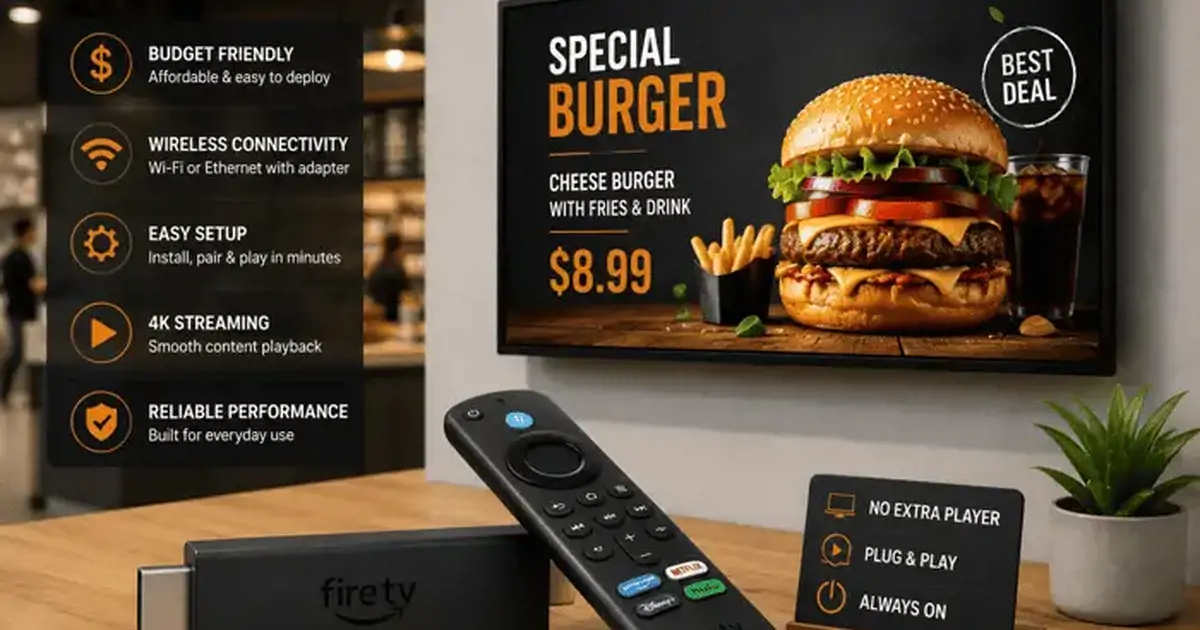
A Fire TV Stick costs about the same as a takeaway for two and will turn any television into a digital signage screen. That is a genuinely remarkable price-to-capability ratio, and it is why Fire TV is the most common first player for small businesses.
It is also the device we field the most support tickets about. Not because the platform is bad, but because it is a consumer product with consumer defaults doing a commercial job, and because the stick form factor has a physics problem that nobody mentions at the point of sale. This guide covers proper setup and an honest account of where Fire TV falls short.
Why Fire TV is so popular for signage
Three things.
Price. $30–$60, frequently less in a sale. For a business testing whether digital signage is worth doing at all, the entry cost is close to zero.
Availability. You can buy one this afternoon, almost anywhere, in almost any country. When a device fails at a site three hours away, that matters more than any specification.
Familiarity. Staff have seen the interface. That sounds trivial until you are talking someone through a fix over the phone.
Fire TV runs Fire OS, which is Android underneath with Amazon's launcher and app store on top. Practically, that means a signage player built for Android runs on it — but distribution goes through the Amazon Appstore rather than Google Play, and some Google services are absent.
Which Fire TV device to buy
Stick vs Cube: the real difference
The specification sheets undersell the gap, because the important difference is thermal, not computational.
| Fire TV Stick (4K / Max) | Fire TV Cube | |
|---|---|---|
| Typical price | $30–$60 | $120–$140 |
| Form factor | Dongle behind the panel | Mains-powered box, placeable |
| Cooling | Passive, no airflow when enclosed | Larger body, better dissipation |
| Ethernet | Adapter required | Built in |
| Sustained 4K / multi-zone | Throttles under load | Handles it |
| Realistic duty cycle | Ventilated mounts, single zone | All-day, enclosed mounts |
The short version: a Stick is fine for a single zone of images and 1080p video on a panel with airflow behind it. If the mount is flush against a wall, or you are running split-screen layouts, or the content is sustained 4K, buy the Cube — or an Android TV box, which at that point costs about the same and gives you more headroom.
Installing the signage player
- On the Fire TV home screen, open Find → Search.
- Search for your signage platform's player. The Qmanja Signage player is on the Amazon Appstore.
- Install and open it.
- The app shows a six-character pairing code.
Because Fire OS is Android-based, a platform without an Appstore listing can usually be side-loaded from an APK. That means enabling Settings → My Fire TV → Developer Options → Apps from Unknown Sources. Turn it back off once the app is installed — leaving it on is an unnecessary standing risk on a device sitting on a shared business network.
Pairing the screen
Open your dashboard on a phone or laptop, add a screen, and enter the six-character code from the TV. Name it something you will recognise in a list — "Reception — right", not "Fire TV 3" — and assign it to its outlet and screen groups straight away.
Pairing by code rather than by login matters here specifically: typing an account password on an on-screen keyboard with a remote, in a room with customers in it, is both painful and a credential you have effectively shown to the room.
Fire TV settings that keep a screen alive
Nearly every "the screen went blank" ticket on Fire TV is one of the three things below.
Killing the Amazon screensaver
Fire TV ships with a photo screensaver on a short timer, and it will replace your menu board with aerial photography of Iceland.
Settings → My Fire TV → Screen Saver → Start Time → Never.
On some Fire OS versions this lives under Settings → Display & Sounds → Screen Saver. Wherever it is, set the start time to Never rather than to the longest interval — "4 hours" still fires, just after you have stopped watching.
Disabling sleep and standby
Separate from the screensaver, and both must be changed.
Settings → My Fire TV → Sleep → Never. (Older builds: Settings → Display & Sounds → Display → Sleep.)
Then the television's own timers, which are independent of anything on the Fire TV: sleep timer off, eco mode off, no-signal power-off off, and any "power down after N hours without remote input" setting off. That last one defaults to four hours on a lot of sets and produces the classic "the screen dies every afternoon" report.
Auto-start after a power cut
Fire TV boots automatically when mains power returns — but it boots to the Amazon launcher, not to your app. A signage player with a boot receiver relaunches itself; the Qmanja player does this.
Also enable HDMI-CEC on the television (Anynet+, Simplink, Bravia Sync — same feature, different branding) so the device can wake the panel and switch it to the correct input.
Then test it the only way that means anything: pull the plug at the wall, wait thirty seconds, plug it back in, and time how long until your content is on screen. If it does not come back on its own, you have found a problem now rather than on a bank holiday.
Controlling app and OS updates
Fire OS updates automatically and you cannot fully disable it, which is a real consideration for unattended screens. The mitigations are: keep the signage player on auto-update so it stays compatible, turn off auto-update for every other app under Settings → Applications → Appstore → Automatic Updates, and remove apps you do not need so there is less to update.
The player relaunching after an OS update is the behaviour that matters, and it is worth verifying rather than assuming.
The honest limitations of Fire TV for signage
Where the platform genuinely struggles.
Heat, throttling and stick placement
This is the big one, and it is physics rather than software. A Fire TV Stick is a passively cooled dongle designed for a few hours of use in open air. Plugged directly into an HDMI port on a panel flush-mounted against a wall, with a warm display on one side and plasterboard on the other, it has nowhere to shed heat.
Under sustained load it throttles. Symptoms in order of appearance: video stutter, then app restarts, then reboots. It looks exactly like a software fault and it is not.
The fixes, in order of effectiveness: use a short HDMI extension cable so the stick hangs in open air rather than sitting against the panel; do not power it from the TV's USB port, which both starves it and cycles power with the TV; and if the mount is genuinely sealed, use a Cube or an Android TV box instead.
The rest
- No Ethernet without an adapter. The adapter is inexpensive and worth buying, because Wi-Fi is the leading cause of intermittent blank screens.
- Amazon's launcher takes priority. Home-button presses, promotional overlays and update prompts can surface over your content. In a public space, put the remote out of reach — or in a drawer in the back office.
- Limited memory headroom. Sticks have less usable RAM than a comparable Android TV box, which shows up first on multi-zone layouts.
- Regional Appstore differences. An app available in one country's Appstore is not automatically available in another, which is a real constraint for international estates.
- Consumer terms. Fire TV is sold for personal use. This rarely causes practical problems, but it is worth knowing that there is no commercial warranty or support path if a device fails at scale.
When to upgrade to something else
Move off a Fire TV Stick when any of these become true:
- You are running split-screen layouts with more than one video zone.
- The content is sustained 4K rather than images and short clips.
- The mount is enclosed with no airflow.
- You are running a live stream all day, which is a continuous decode load rather than a burst.
- You have more than about ten screens, at which point the per-device saving stops mattering compared with the cost of any downtime.
The natural next step is a powered Android TV box with 4 GB of RAM and Ethernet, at $80–$120. For a commercial estate where you are buying panels anyway, Samsung Tizen or LG webOS removes the external device entirely.
What a Fire TV screen actually costs
The device price is the visible number and the smallest one. Here is a realistic first-year cost for a single screen, assuming you already own a display.
| Item | Minimum | Recommended |
|---|---|---|
| Fire TV device | $30 (Stick 4K) | $130 (Cube) |
| HDMI extension cable | $8 | $8 |
| Ethernet adapter | — | $15 |
| Mains power adapter | Included | Included |
| Signage software, year one | $0 (free tier) | $60 |
| Total | $38 | $213 |
Two line items on that list are the ones people skip and then pay for twice. The HDMI extension cable is eight dollars and prevents the single most common Fire TV failure mode. The Ethernet adapter is fifteen dollars and prevents the second. Buying both from the start is cheaper than one site visit.
Deploying more than one Fire TV screen
The per-device setup is quick. What is not quick is doing it fifteen times, badly, in fifteen different places.
Configure everything on a bench first. Power up all the devices in one room, let them run their initial OS updates, install the player, apply every setting from the section above, and pair them. A device with a manufacturing fault almost always shows it in the first hour, and finding that out on a bench is very different from finding it out at the top of a ladder.
Use one Amazon account for the estate, not personal accounts. A device registered to a member of staff becomes a problem the day they leave. Register a business account, use it for every device, and record where the credentials live.
Label the device to match the screen name. A physical sticker that matches the name in your dashboard. When someone reports "the one near the entrance is stuck", you want to find it without walking the building.
Turn off every notification and promotional setting before deployment: Settings → Preferences → Notification Settings → App Notifications → Off, and turn off Featured Content video and audio autoplay under Settings → Preferences → Featured Content. An Amazon promotion appearing over a menu board is a small thing that looks unprofessional in exactly the wrong place.
Keep one pre-configured spare per site. At $30 a unit this is the cheapest insurance in the deployment, and it converts a hardware failure from a support ticket into a two-minute swap by whoever is on shift.
Security considerations worth ten minutes
A Fire TV on a business network is a general-purpose computer with a browser, an app store and access to whatever the network can reach. That is usually fine, and there are four things worth doing anyway.
- Turn off Apps from Unknown Sources once you have finished side-loading anything. Leaving it enabled is a standing risk for no ongoing benefit.
- Put signage players on their own network segment, separated from point-of-sale, back office and staff devices. If your router supports a guest VLAN, that is sufficient for most small businesses.
- Set a PIN on purchases under Settings → Preferences → Parental Controls. A device with a remote in a public area is a device someone can buy a film on.
- Do not sign in to anything you care about. The Fire TV needs the Amazon account and the signage player's pairing code. It does not need your email, your storage or anything else, and each additional credential on a device in a public space is one more thing to worry about.
Troubleshooting checklist
Screensaver appears. Screen Saver → Start Time → Never. Check it is Never, not "4 hours".
Screen blanks after a few hours. Sleep on the Fire TV, or a timer on the television. Both have their own settings; check both.
Video stutters, then the app restarts. Heat. Feel the stick. Move it into open air with an HDMI extender before you suspect anything else.
Boots to the Amazon home screen after a power cut. The player is not auto-starting, or the TV is on the wrong HDMI input. Check the player's boot behaviour and enable HDMI-CEC.
Device drops off Wi-Fi intermittently. Check signal strength at the mounted position with the panel installed, not from the middle of the room. Add the Ethernet adapter — it resolves this permanently.
Content is stale. The device is offline and playing its cache, which is the correct behaviour and also why nobody noticed. Configure offline alerts so you find out by email rather than by walking past.
Is Fire TV the right choice?
For a single screen running a menu board or a promotional loop, in a ventilated position, on a business that wants to find out whether signage is worth doing at all — yes, unreservedly. It is the cheapest honest route to a working screen and there is nothing wrong with starting there.
For an estate of twenty screens running split-screen layouts in flush mounts, no. Not because the software cannot do it, but because the hardware will spend its life throttling and you will spend yours diagnosing it.
The good news is that the decision is not permanent: the screen is paired to your account, not to the device. Swapping a Stick for a box later is a five-minute job, and your content and schedules do not change.
Test it for nothing. Qmanja Signage is free for your first screen, and the player is on the Amazon Appstore. If you outgrow the Stick, the same account runs Android TV, Windows, Tizen, webOS and the browser player with no migration.


