
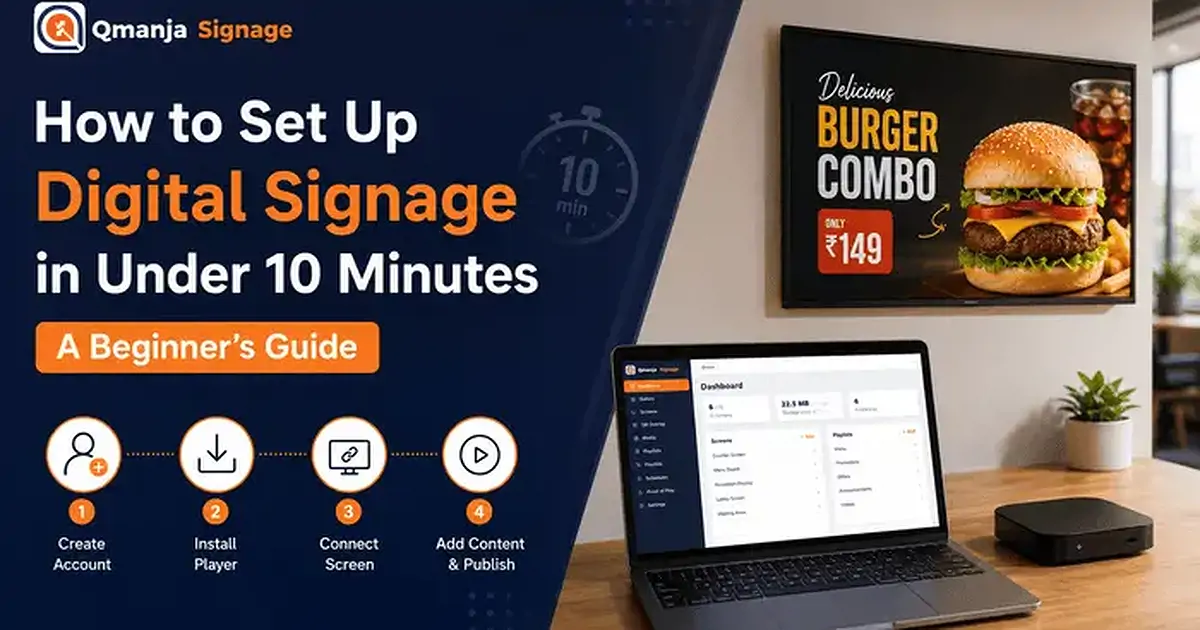
How to Set Up Digital Signage in Under 10 Minutes: A Beginner's Guide
The mechanical part really does take about ten minutes. This guide covers the decisions that come first — what the screen is for, where it goes and which player runs it — then the setup in order, and the five failures behind almost every first-week support ticket.
On this page
Ten minutes is an honest figure for the mechanical part: create an account, install a player, type a six-character code, add a few files, order them into a playlist, publish. On a reasonable connection that really is about ten minutes.
What takes longer is the twenty minutes of thinking that should come first, and that decides whether the screen still does a job in six months or has become wallpaper. So this guide is in two halves — the decisions, then the setup in order — followed by the failures behind almost every first-week support question. If you already know what you want on the screen, skip to creating the account.
Decide three things before you touch anything
Screens that end up ignored were usually installed without an answer to one of these. None takes long; all are expensive to change once the bracket is up.
What the screen is actually for
Write one sentence describing the job. "Show the current menu and prices at the counter." "Tell people which desk to go to." "Replace the printed staff noticeboard."
A screen with one job gets designed; a screen with five jobs gets a loop. A loop is what you build when you cannot decide, and it performs worse than any of its parts, because a customer at a counter sees whichever slide happens to be up. If you genuinely have five things to say, you either need a split-screen layout so several are visible at once, or you accept a ranking and let the fifth thing lose. A counter board, a shop window and a campus corridor are three problems at three reading distances; the retail playbook shows how much the answer changes by zone.
Where it goes, and how far away people stand
Stand where the reader will actually stand and measure. Not the middle of the room — the spot where somebody queues, waits or walks past. The working rule for legibility is about one inch of text height per ten feet of viewing distance, so a board read from twelve feet needs its smallest text near 1.2 inches. A 55-inch 16:9 panel is about 27 inches tall, so a 4K screen gives roughly 80 pixels per inch and that 1.2 inches works out near 95 pixels; the same panel at 1080p halves it to about 48. Smaller than that is decoration, not information.
Check three other things while you are standing there:
- Light. A screen facing a window or bright doorway washes out, and content cannot fix that — a window position needs a high-brightness commercial panel.
- Power and network within reach. A socket behind the panel and, ideally, an Ethernet drop. Running a cable afterwards means a second visit.
- Sightlines. Sit down, stand up, walk the approach. Screens mounted at the installer's eye level are often invisible to a seated customer.
Landscape or portrait
Decide before you mount; rotating a wall-mounted panel afterwards needs two people and a new bracket. Landscape suits menus, dashboards, video and anything with columns. Portrait suits queues, entrances, wayfinding and single-message promotions, fits narrow wall space, and forces discipline — less room means fewer messages.
Two warnings. Check the panel is rated for portrait mounting: many consumer televisions are not, because their heat dissipation assumes landscape, while commercial displays state portrait support explicitly. And author portrait content portrait — rotating a landscape file gives a sideways picture, letterboxing gives black bars.
The whole pre-flight, in four answers: what the screen is for, how far away the reader stands, landscape or portrait, and whether there is power and network behind it. Everything after this is mechanical.
Creating the account and what the free tier gives you
The free tier is one screen with 200 MB of storage, free forever, with no credit card. That is not a trial with a countdown attached — one screen running real content indefinitely is a supported configuration, and for a single café or reception desk it may be the whole deployment.
The 200 MB is the constraint that shapes everything downstream. It is plenty for an exported menu board, a set of promotional stills or a short looping clip, and nowhere near enough for a folder of untouched 4K exports — which is why file preparation matters more than upload speed.
When you outgrow one screen, Pro is $6.99 per screen per month, or $4.99 per screen per month billed yearly, with twenty screens or more quoted as Business. There is no per-feature upsell in the middle: scheduling, split-screen layouts, video walls and proof-of-play are properties of the platform, not modules. The free versus paid comparison works through where the crossover falls. Whichever tier you land on, register the account to a business address that outlives individuals: an estate registered to a staff member becomes a problem when they leave.
[SCREENSHOT: dashboard after sign-up, no screens paired]
Choosing a player for the screen you already have
A player is whatever runs the content on the display, and you almost certainly already own something suitable. Live today: any web browser, Android TV, Amazon Fire TV and Windows. A macOS player, plus Samsung Tizen and LG webOS builds that would run inside the panel itself, are in development; an iOS/iPadOS player is in review. If you are buying Samsung or LG commercial panels now, plan on an external player into the panel's HDMI input — the Tizen and webOS guides explain what changes when the player moves inside the display.
| Player | Best for | Watch out for |
|---|---|---|
| Web browser | Trying it in two minutes; a spare laptop or a PC already attached to a display | Whatever else the machine does — updates, sleep, notifications, someone closing the window |
| Android TV | The default for an unattended TV: cheap, locally replaceable, capable enough for multi-zone | Consumer sleep and screensaver defaults; buy 2 GB RAM or more and prefer an Ethernet port |
| Amazon Fire TV | The lowest-cost route to a live screen; fine for single-zone image and video playlists | Heat in enclosed mounts; screensaver and sleep are separate settings |
| Windows | Reception PCs, mini-PCs already behind a panel, and heavier layouts | OS updates rebooting at the wrong hour; set the machine never to sleep or lock |
The browser player runs in any modern browser, so the machine driving your screen can be more or less anything with a display and a network connection. That is a statement about the browser player, not a claim of a dedicated app for every operating system — and it is the right way to test before buying hardware. For anything permanent, the players page lists what is available, and the Android TV and Fire TV guides cover hardware selection properly.
Installing the player
Installation is the least interesting step and should stay that way. On Android TV and Fire TV you install the player app from the device's own app store; on Windows you run the installer; in a browser you open the player address and go full screen.
All three routes end at the same place: a single-purpose application that has taken over the display and is showing a pairing code. If you are looking at a code, installation worked and you can put the remote down. While the device is in your hands, do the sleep and screensaver settings now rather than after the first blank screen — troubleshooting below covers what to change.
Pairing with the six-character code
The player shows a six-character code. You enter that code in the dashboard, and the screen claims itself to your account within seconds.
[SCREENSHOT: pairing screen showing the six-character code]
It works this way rather than by signing in on the device for a good reason: a password typed with a remote in a public room is a password you have effectively published. The code proves the device is in front of you; the credentials never leave your laptop.
Three decisions are worth making at this exact moment, because retrofitting them across an estate later is tedious:
- Name it for the person who will inherit it. "Camden — counter, left" beats "Screen 1". You are writing for a colleague scanning forty entries in eighteen months, working out which one is stuck.
- Set the orientation now if the panel is mounted portrait, so everything you build afterwards is the right shape.
- Put it in a group, even a group of one. That is how you later publish to "all counter screens" instead of to eleven screens individually.
Getting media in, and why file preparation beats upload speed
This is where beginners lose the most time, and rarely for the reason they expect. The upload is not the bottleneck. The files are.
A 6000-pixel-wide photograph on a 1920-pixel-wide screen is not sharper than a 1920-pixel version. It is identical on screen, and it costs you storage, download time and cache space. On a free tier with 200 MB, three or four unprepared exports consume the lot; on a paid estate the same files make every screen slower to update.
What to fix before you upload
- Export at the size it will be displayed. Full screen on a 1080p panel is 1920 x 1080; a quarter-screen zone is 960 x 540.
- Use MP4 with H.264 for anything that must play everywhere. H.265 is smaller and fine where the device decodes it in hardware, but H.264 is the safe default across a mixed estate.
- Strip the audio track from video destined for a silent screen. It is free file size.
- Keep clips to fifteen or thirty seconds. A screen is glanced at, not watched; a three-minute film means your message is off screen most of the day.
- Author portrait content portrait rather than rotating or letterboxing a landscape file.
- Check contrast and text size against the distance you measured. The W3C contrast guidance is written for web pages, but the ratios translate to a screen read across a room.
- Name files so they are findable in month six. "menu-lunch-2026-03.mp4" survives a handover; "final_v3_REAL.mp4" does not.
Building your first playlist
A playlist is an ordered set of items, each with a duration. That is the whole concept; the decisions are about timing, not software.
[SCREENSHOT: playlist showing item order and per-item duration]
Per-item duration. Seven to ten seconds for a simple image with one idea on it, fifteen if there is more to read, and video plays for its own length. Under five seconds reads as a flicker; over twenty on a static image reads as a fault.
Total loop length. The number people forget. In a queue, the loop should be shorter than the average wait so nobody watches a repeat. In a corridor, each item must work alone, because someone walking past sees exactly one.
Start with four to six items, not twenty. A short loop is easier to judge, easier to fix and far likelier to get updated.
Resist split-screen on day one. Layouts of up to twelve zones are available, and they are the right answer for a menu board that needs food, prices and a promotion visible at once — but get one full-screen playlist looking correct on the real display first. Adding zones to something that works is easy; debugging zones, playback and scheduling at once is not.
Scheduling and dayparting
Scheduling is the point at which a screen stops needing a person. Until you set one, somebody has to remember; afterwards, nobody does.
The question is whether content should differ by time of day or day of week. For many screens the answer is no, and one playlist across opening hours is correct. For hospitality it is almost always yes: a breakfast board that becomes a lunch board at eleven and a dinner board at four is the canonical case, and it pays for itself because the alternative is a member of staff changing boards mid-service. The restaurant solutions page covers those patterns in detail.
[SCREENSHOT: schedule view showing a weekly daypart grid]
- Always have a default. Set the playlist that runs when nothing else applies, then layer dayparts on top. A schedule built only from time windows will eventually contain a gap, and a gap is a blank screen at the moment you are not there.
- Test the switch by watching it happen. Set a daypart to begin two minutes from now and stand in front of the screen. It exercises the schedule, the publish path and the device's clock at once.
Content scheduling and power scheduling are different: one decides what plays while the screen is on, the other whether it is on at all. A display that sleeps outside trading hours uses less electricity and lasts longer, and on a TV-plus-player setup that is a job for HDMI-CEC rather than for the playlist.
Going from one screen to several
The second screen changes the job. One screen is a content problem; several are an organisation problem, and the habits that keep it manageable are cheap early and expensive to retrofit.
- Stage on a bench, not on a ladder. Power up every device in one place, update, install, apply settings and pair. Hardware that is going to fail usually fails in its first hour.
- Match the physical label to the digital name. When someone reports that "the one by the door has frozen", you want to find it without walking the building.
- Build groups before you pair — by site, and by role within the site. A group is how a promotion reaches eleven locations in one action.
- Keep one configured spare per site. A pre-paired device in a drawer turns a hardware failure into a two-minute swap.
If several panels need to behave as one canvas — a wall of four in a lobby — synced video walls handle that in software rather than needing a hardware controller. If you are still comparing platforms rather than scaling one, the buyer's guide sets out the questions worth putting to vendors in writing.
Publishing, and what "published" actually means
Publishing writes your change to the cloud. It does not paint pixels on a wall in another building. The screen applies the change when it next checks in, and only after downloading whatever new media it needs. On a good connection with small files that gap is seconds; with a large video on a weak link it is however long the download takes.
The other half of the model is offline caching, and it is deliberate: a screen with no network keeps playing its last published schedule from local storage, indefinitely. That is what you want, because a broken router should not blank a menu board. The consequence catches people out. An offline screen looks completely fine. It is bright, it is looping, and it is frozen in the past — nobody notices until a price is wrong.
The practical rule: published means "the platform has your change". On screen means "the device took it". The gap between those two facts is where every "I changed it and nothing happened" report lives. For anything that matters — a price, a legal notice, an allergen list — confirm on the screen itself or against the device's last check-in.
Proof-of-play reporting exists for the same reason: a log of what played is the only record that is not an assumption.
Troubleshooting the failures that actually happen
Five faults account for most first-week problems, and three of them are device settings rather than software.
The screen goes blank after a few hours
Sleep timers. There are two independent sets — one in the player device, one in the television — and it is nearly always the one you did not check. Set the device's sleep timer to Never, then in the television's own menu disable its sleep timer, its eco or energy-saving mode, and any "power off after N hours with no remote input" option. That last one commonly ships enabled with a four-hour default, which is what produces a screen that dies every afternoon. Test overnight: a ten-minute test proves nothing when the timer that will get you is set to four hours.
A screensaver or ambient mode takes over
Separate from sleep, on both Android TV and Fire TV, and turning off one does not turn off the other. On Fire TV the screen saver has its own start time that must be set to Never; Google TV devices also have an ambient mode, distinct again, which will cheerfully replace your menu board with photographs. The symptom tells you which fault you have: a dark display is sleep, and a display showing something else is a screensaver.
The device does not come back after a power cut
Three things all have to be true, and the fault is whichever one is not:
- The television powers on when mains power returns instead of going to standby. On many sets this is a setting; on some it is fixed, which is worth knowing before you buy for a site with unreliable power.
- The player relaunches on boot rather than leaving the device on its home screen. A screen sitting on a launcher is functionally down.
- HDMI-CEC is enabled on both devices, so the player can wake the panel and switch it to the correct input. Manufacturers brand CEC differently, but it is the same feature.
Test it the only way that counts: pull the plug at the wall, wait thirty seconds, plug it back in and time how long until content returns. Do this at commissioning, not after the first outage.
Media will not play
In order: is it still downloading? A large file on a slow link takes time to reach the device. Is the storage full? On the free tier you have 200 MB, and one unprepared 4K export can approach that alone. Is the codec supported by that device? Re-encode to MP4 with H.264 as a diagnostic — if that plays, the original was the problem. Is the file simply enormous? Going back to the file preparation checklist fixes this more often than any setting does.
The screen is showing the wrong playlist
Three causes, in order of likelihood. The change has not reached the device yet — see what publishing means, and check when the screen last checked in before changing anything else. Two schedules overlap and one is winning; a daypart left over from a promotion three weeks ago is the classic. The screen is in a group you had forgotten about and is getting that group's content as well as its own — the one that appears as estates grow, and the argument for a naming convention you can read at a glance.
A rarer fourth case: a screen back on a pairing code has been reset or unpaired. Re-pair it, and if it recurs, suspect somebody with a remote.
Best practice worth adopting on day one
- One job per screen. If you cannot say what a screen is for in a sentence, its content will drift.
- Keep roughly 80% of the content stable and 20% rotating. People learn where to look, and constant reshuffling costs you that.
- Name screens, groups and files for your successor. Handover is when badly named things become expensive.
- Wire it if you can. Most "random blank screen" reports are network problems attributed to the player.
- Put a content review in the calendar. Monthly is enough. A Christmas promotion still up in March costs more credibility than no screen at all.
- Give one named person the job. Deployments rarely fail technically. They fail because content ownership was never assigned.
- Decide what you will measure before you install. Pick something the screen could plausibly move — attachment rate on the promoted item, queries deflected from reception — and record a baseline first. Any figure quoted at you without a baseline and a matched comparison period is marketing, from anybody.
The ten minutes, in order
- Create the account. One screen, 200 MB, no card.
- Install the player — app store, installer, or a browser window.
- Enter the six-character code from the screen into the dashboard.
- Name it and put it in a group.
- Add your prepared media.
- Build a four-to-six item playlist and set the durations.
- Assign it to the screen and publish.
- Look at the actual screen. That is the only confirmation that counts.
Then spend ten more minutes on device settings — sleep off, screensaver off, auto-start on — and ten after that pulling the power out of the wall to see what happens.
Where to start
The setup is not the hard part, and any platform that makes it hard is telling you something. The hard part is deciding what the screen is for, exporting files that suit it, and checking the screen rather than trusting the publish button. Get those right on the first screen and the tenth is a copy of it.
Set one up now. The free tier is one screen and 200 MB, free forever, with no credit card — enough to run a real menu board or noticeboard indefinitely. Pair a laptop browser in two minutes, or install the Android TV, Fire TV or Windows player on a device you already own. If you would rather be walked through it, or you are planning several sites at once, book a walkthrough and bring your floor plan.


